A Quick Walkthrough

We will now briefly understand what is available on the Ganache desktop. On the Desktop, at the top we have several menu options out of which a few are of immediate relevance to us. The menu bar is highlighted in the screenshot below −
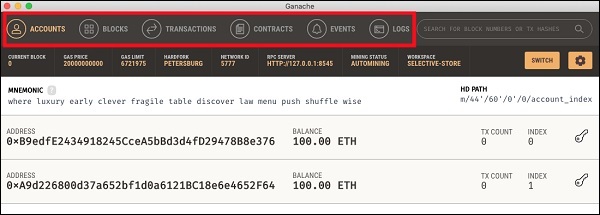
Ganache Menu Options

Clicking on the TRANSACTIONS menu shows all the transactions performed so far. You will be performing transactions very soon. Now, come back to the above screen and check the transactions from time to time. A typical transaction screen is as shown below −
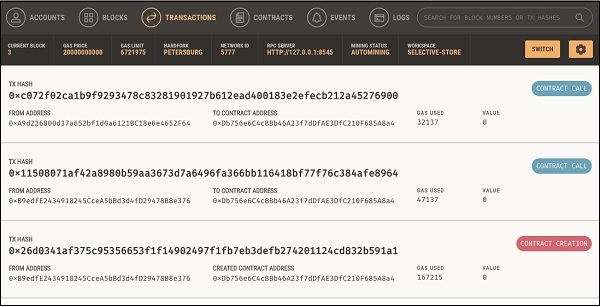
Ganache TRANSACTIONS

Likewise, when you click on the BLOCKS menu, you will see the various mined blocks. Consider the following screenshot to understand how the BLOCKS menu looks like −
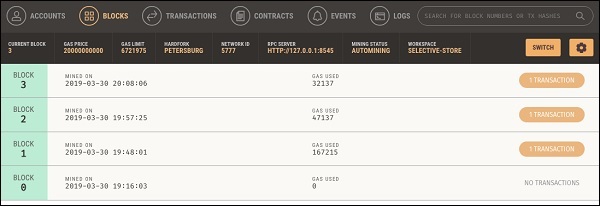
Ganache Blocks

Click on the LOGS menu. It will open the system log for you. Here, you can examine the various operations that you have performed on the Ethereum Blockchain.

Now, as you have understood how to use Ganache for setting up a private Ethereum Blockchain, you will now create a few clients who would use this Blockchain.

Similar Posts

  • Introduction

    A huge success of Bitcoin raised interest in the minds of several to create their own currencies. Looking at the advantages offered by Bitcoin – a digital currency, people wanted to use the concept of Blockchain in their own applications. People wanted to move out of their physical contracts to smart digital contracts where several…

  • Smart Contracts

    There are several tools available to develop and test contracts. One of the simplest tools is provided on the official Ethereum site itself. The tool is called Remix, we will use this for our contract development. Remix for Contract Development Open the Remix IDE by typing in the following URL in your browser.https://remix.ethereum.org The following screen…

  • Creating Contract Users

    In this chapter, we will learn the creation of contract users on Ethereum. To create a user for our published contract, we will create another MyEtherWallet client attached to the same Ganache Blockchain that you have been using in the previous steps. Go to the MyEtherWallet screen and create a new wallet. Click on the contracts menu and select the “Interact with…

  • Compiling the Contract

    Once you write the complete contract code, compiling it in this IDE is trivial. Simply click on the Autocompile checkbox in the IDE as shown in the screenshot below − Alternatively, you may compile the contract by clicking the button with the title “Start to compile”. If there is any typo, fix it in the code window. Make…

  • Limitations of Remix

    The Remix IDE that you have used so far is good enough for development and initial testing of your contract. For real-life contracts, you need to test your functionality against various parameters. Remix cannot create real (non-test) user accounts to transfer funds between them. You have no control over the configuration of the Blockchain created…